
The internet makes it easy to communicate, shop, work, and access information from almost anywhere. However, every online activity can involve sharing information with websites, internet service providers, applications, and other services. Understanding what information is exposed—and how to protect it—is an important part of modern cybersecurity.
A Virtual Private Network (VPN) can improve online privacy by encrypting traffic between your device and a VPN server. But a VPN is not a complete security solution. Strong passwords, multi-factor authentication, software updates, and careful browsing habits remain essential.
In this guide, we explain how VPN security works, what a VPN can and cannot protect, and practical steps you can take to improve your online privacy.
What Is a VPN and How Does It Work?
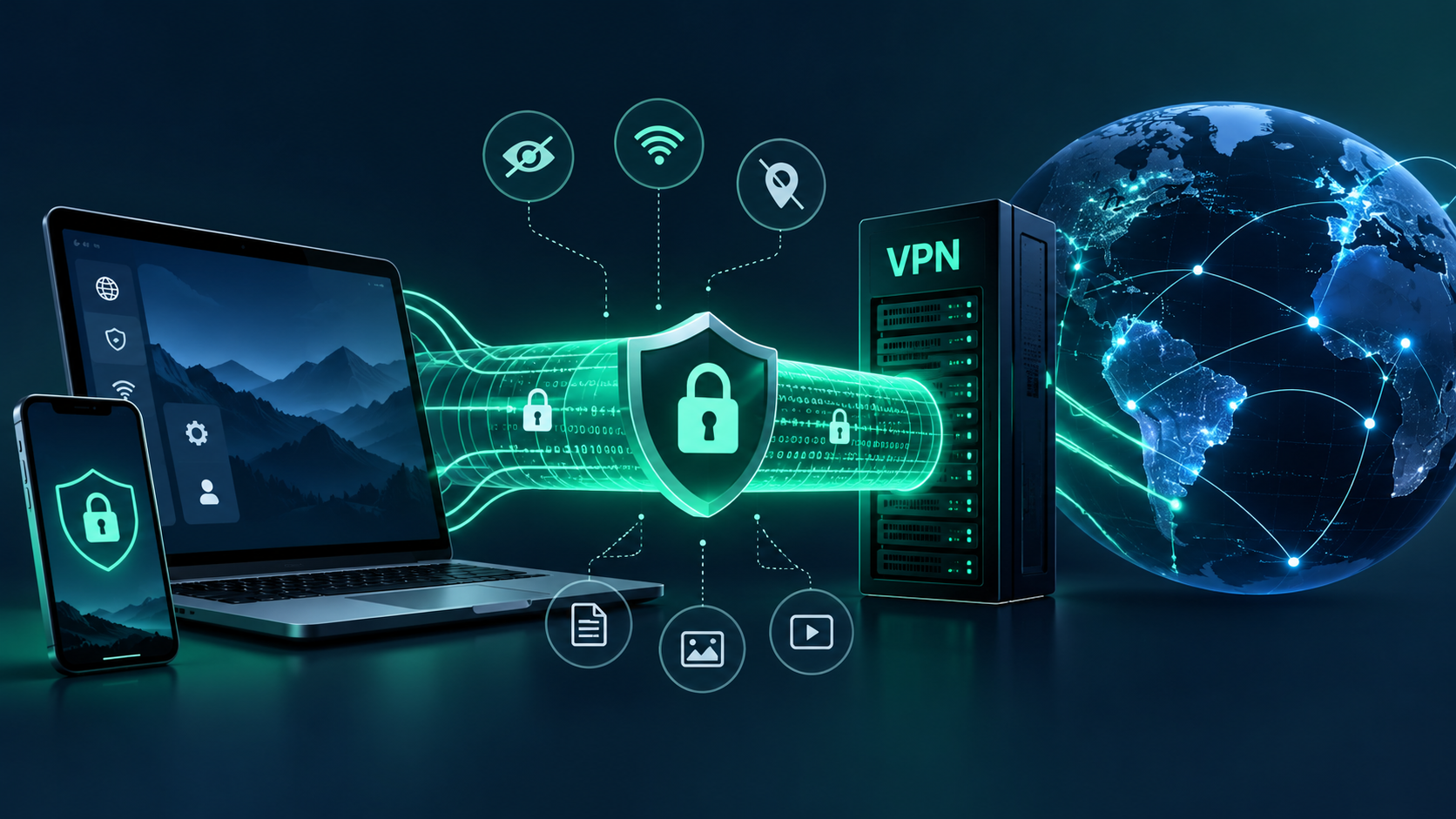
A VPN creates an encrypted connection between your device and a VPN server. Instead of connecting directly to websites through your normal internet connection, your traffic passes through the VPN server before reaching its destination.
This can help protect traffic from people monitoring the local network and hide your public IP address from websites, which will generally see the VPN server’s IP address instead.
A VPN does not make every online activity anonymous. Websites can still identify you through account logins, cookies, browser fingerprinting, and information you voluntarily provide.
How a VPN connection works
- You open a VPN application and connect to a server.
- Your device establishes an encrypted VPN tunnel.
- Your internet traffic travels through that tunnel to the VPN server.
- The VPN server forwards traffic to the destination website.
- The destination website receives the connection from the VPN server’s IP address.
The VPN provider becomes an important party in your privacy model because it handles your traffic as it exits the VPN tunnel. Choosing a trustworthy provider is therefore essential.
What Does a VPN Protect You From?
VPN protection depends on the technology used, the applications you run, and how your device is configured.
| Security or privacy concern | How a VPN helps | Important limitation |
|---|---|---|
| Monitoring on public Wi-Fi | Encrypts traffic between your device and the VPN server | Does not protect against every compromised device or network attack |
| Exposure of your public IP | Websites generally see the VPN server’s IP | Accounts, cookies, and other identifiers may still identify you |
| ISP visibility | Reduces the ISP’s visibility into the contents of traffic carried through the VPN tunnel | The ISP can generally see that you are connected to a VPN |
| Untrusted local networks | Helps protect tunneled traffic against local network observation | Does not replace HTTPS or device security |
| Phishing websites | A VPN may offer additional threat-blocking features if supported | A VPN alone does not reliably prevent phishing |
| Malware | Some VPN services offer separate malicious-domain blocking features | A VPN is not a replacement for endpoint protection |
A VPN is most useful when you understand its role as one layer of a broader security strategy.
VPN vs. Proxy vs. HTTPS: What’s the Difference?
These technologies serve different purposes. Understanding their differences helps you select the right protection.
| Feature | VPN | Proxy | HTTPS |
|---|---|---|---|
| Encrypts traffic | Usually, with a properly configured VPN | Depends on the proxy and connection | Encrypts communication between browser and website |
| Changes the visible IP | Usually, for traffic routed through it | Usually, for traffic routed through it | No |
| Protects multiple applications | Often, depending on routing configuration | Depends on the application and proxy settings | Protects individual HTTPS connections |
| Protects local network traffic | For traffic carried through the encrypted tunnel | Not necessarily | Protects HTTPS content |
| Prevents phishing | Not by itself | Not by itself | Does not establish that a website is trustworthy |
For everyday browsing, HTTPS is essential. A VPN can complement HTTPS by protecting the connection to the VPN server and changing the IP address visible to destination websites.
How to Check Whether Your VPN Is Working
Installing a VPN is only the first step. You should also verify that your connection behaves as expected.
1. Check your public IP address
Connect to your VPN and visit CyberScop’s IP Lookup tool.
Compare the displayed IP address with the one shown when your VPN is disconnected. When the VPN is routing your internet traffic correctly, the public IP seen by the lookup service should generally change to the VPN exit address.
If the address does not change, check the VPN connection, split-tunneling settings, and routing configuration.
2. Test for DNS leaks
DNS translates domain names into IP addresses. Depending on your configuration, DNS requests may use your ISP’s resolvers instead of the VPN’s intended DNS path.
Use the CyberScop DNS Leak Test to examine the DNS information visible to the test. Compare the results with the DNS behavior you expect from your VPN provider.
A DNS resolver’s location alone does not prove a leak. Some VPN providers intentionally use third-party DNS infrastructure, so interpret results using the provider’s documented configuration.
3. Check for WebRTC exposure
WebRTC supports real-time communication in browsers. Depending on the browser, network configuration, and VPN setup, WebRTC may expose network addresses that differ from the IP shown by a basic lookup.
Run a browser-based leak test while connected to your VPN. Review which addresses are visible and whether they reveal an unexpected public IP.
4. Repeat the checks after changing networks
VPN behavior can change when you switch between Wi-Fi and mobile data, reconnect after a network interruption, or change VPN servers.
Repeat your checks after significant connection changes. If you find unexpected exposure, review your VPN application’s leak-protection settings and consult its support documentation.
Seven Practical Ways to Improve Online Security
A VPN is only one part of protecting your digital life. The following measures help reduce common risks for individuals and businesses.
1. Use strong, unique passwords
Use long, unique passwords for important accounts and consider a reputable password manager. Reusing passwords means a compromise on one service can put other accounts at risk.
2. Enable multi-factor authentication
Multi-factor authentication (MFA) requires an additional verification factor beyond your password. Where available, prefer phishing-resistant options such as security keys or passkeys. MFA adds an important layer of account protection.
3. Keep devices and applications updated
Operating system, browser, and application updates often address security vulnerabilities. Enable automatic updates when practical and remove software you no longer need.
4. Check suspicious links before opening them
Be cautious of unexpected messages, urgent payment requests, and login links that ask you to disclose credentials. CyberScop’s URL Checker can help assess suspicious URLs, but no automated check can guarantee that a link is safe.
5. Secure your home and business Wi-Fi
Use WPA2-AES or WPA3 where supported, change default router administrator credentials, update router firmware, and disable remote administration when it is not needed.
6. Choose your VPN provider carefully
Review the provider’s privacy policy, logging practices, ownership, permissions, encryption implementation, and independent audit claims. A free VPN is not automatically unsafe, and a paid VPN is not automatically trustworthy.
The Federal Trade Commission recommends researching VPN apps and reviewing their permissions, security, and data-sharing practices before installing them.
7. Protect your website and email domain
Website owners should check certificate validity, review HTTP security headers, and configure SPF, DKIM, and DMARC for their email domains.
These measures help identify configuration problems and reduce certain risks, including email spoofing. They do not replace a comprehensive security assessment.
A Simple Online Security Checklist
Use this checklist to review your current security practices.
| Security task | Recommended action |
|---|---|
| Passwords | Use unique passwords stored in a password manager |
| Account protection | Enable MFA on important accounts |
| Device updates | Install operating system and browser security updates |
| VPN configuration | Verify your public IP and test for unexpected leaks |
| Public Wi-Fi | Use HTTPS and a trustworthy VPN when appropriate |
| Suspicious links | Check unexpected URLs and avoid sharing credentials |
| Website security | Review SSL certificates and HTTP security headers |
| Email protection | Configure and validate SPF, DKIM, and DMARC |
For business environments, also maintain backups, control employee access, monitor important systems, and establish an incident-response process.
Frequently Asked Questions
Does a VPN make me completely anonymous?
No. A VPN can hide your public IP address from destination websites and encrypt traffic between your device and the VPN server. Websites may still identify you through account logins, cookies, browser fingerprints, and other information. Your VPN provider may also have visibility into certain connection metadata.
Is a free VPN safe?
Some free VPN services are legitimate, but you should evaluate each provider individually. Review its privacy policy, business model, permissions, security practices, and independent assessments. Avoid assuming that a provider is trustworthy simply because it offers a free service.
Can a VPN protect me from hackers?
A properly configured VPN can protect tunneled traffic from certain forms of local network monitoring. However, it does not prevent every attack, remove malware, secure weak passwords, or make phishing websites safe. Use it alongside other security measures.
How often should I test my VPN?
Test your VPN when you first configure it, after significant software or network changes, and whenever you suspect a connection issue. Periodic checks can help identify unexpected behavior.
Does HTTPS make a VPN unnecessary?
No. HTTPS and VPNs solve different problems. HTTPS encrypts communication between your browser and a website, while a VPN encrypts traffic between your device and the VPN server. Many users benefit from both, depending on their privacy requirements and network environment.
Can businesses use VPNs for remote access?
Yes. Businesses can use VPNs to provide encrypted access to internal resources. However, secure remote access should also include MFA, device security, access controls, and monitoring. A VPN alone does not ensure that a remote device or user is trustworthy.
Conclusion: Build Security in Layers
Online privacy is not achieved through a single application. A trustworthy VPN can help protect network traffic and reduce direct IP exposure, but effective cybersecurity also requires strong authentication, updated software, safe browsing habits, and properly configured websites and devices.
Start by checking your current setup. Review your public IP, test your VPN for unexpected DNS or WebRTC exposure, and examine your website’s security configuration if you manage a domain.
CyberScop helps you take those first steps with practical cybersecurity and privacy tools. Explore the free security tools, run a VPN check, or use the SSL Checker to better understand your online security.